Layers like an image editor
Combine text, color fills, gradients, images and AI artwork on separate layers with blend modes.
VelonLabs
FIVEM / Texture Workbench
Race numbers on the door, a crest on the jacket, lettering on the slide: the Texture Workbench is the same in every editor. See the UV template and 3D model side by side, work with layers as in an image editor and place artwork with a click on the model.

YOUR PROJECT
Combine text, color fills, gradients, images and AI artwork on separate layers with blend modes.
Click the spot on the 3D model, then align the artwork precisely on the template.
Use brush, eraser and eyedropper for touch-ups and your own details.
Crop layers, hide areas with masks and warp artwork with four corners or a grid so it follows curves.
Copy artwork to the opposite side with one click so lettering reads correctly on both sides.
Compare draft and original, undo steps and hand the finished texture back to your editor.
STEP BY STEP
Sign in with your VelonLabs account to use the editor. Saved projects and credit balance belong to your shared account.
Choose the model and texture in a vehicle, clothing or PED session.
Add text, images or colors, or bring in artwork from the Image Tool or Asset Generator.
Place artwork on the model, refine it on the template and check it from every side.
Save the layers and use the export of the editor you came from.
RESULT
Back in the editor and its export.
In your Cloud, editable later.
FAQ / Texture Workbench
Vehicle & Livery Editor, Clothing & Accessoires Tool and PED & Tattoo Tool, all with the same tools.
Manual editing is free. AI artwork shows its price before it starts.
Yes. Layers are saved in your Cloud and the browser keeps a local draft as well.
Yes. Upload images or bring them in from the Image Tool and Asset Generator.
WORKS WELL WITH
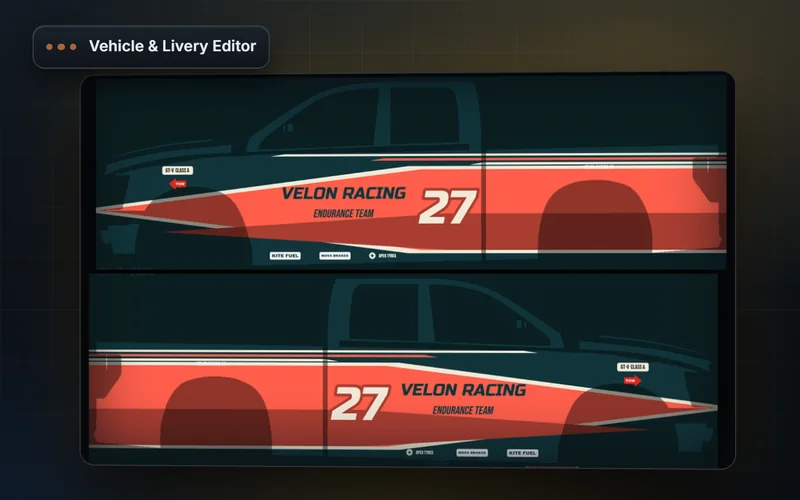
Design FiveM liveries on UV templates. Edit vehicle parts, glow, props, sirens, engine sounds, stance and handling in your browser.
Explore features & workflow →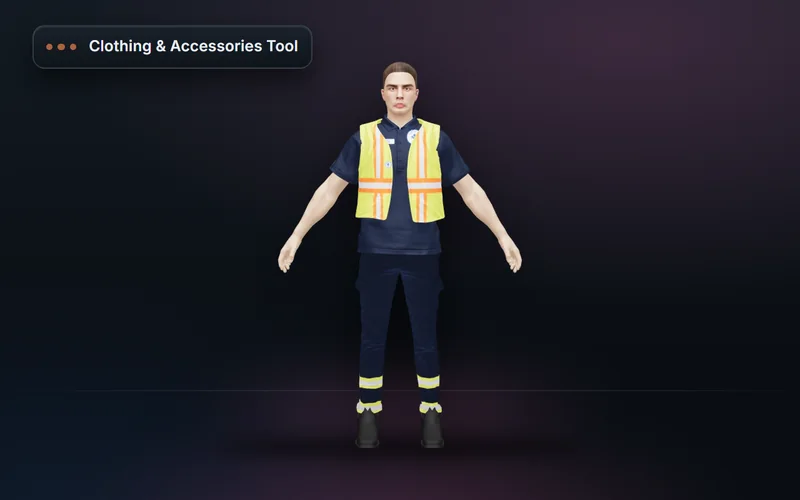
Build FiveM clothing packs from a base library or your own pack: outfits, accessories, AI designs, texture variants and a validated resource export.
Explore features & workflow →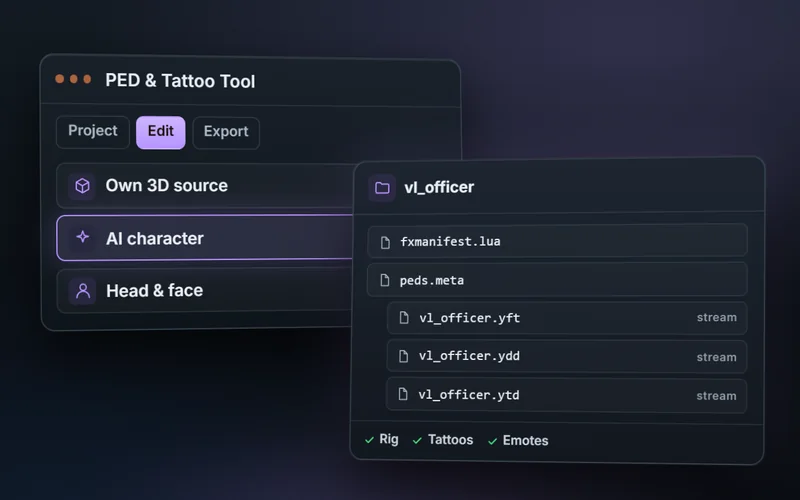
Create FiveM PEDs from text or a reference image, adjust face, skin and body, design tattoos and build emotes from templates or video as a resource.
Explore features & workflow →